
🔑 Key Takeaways
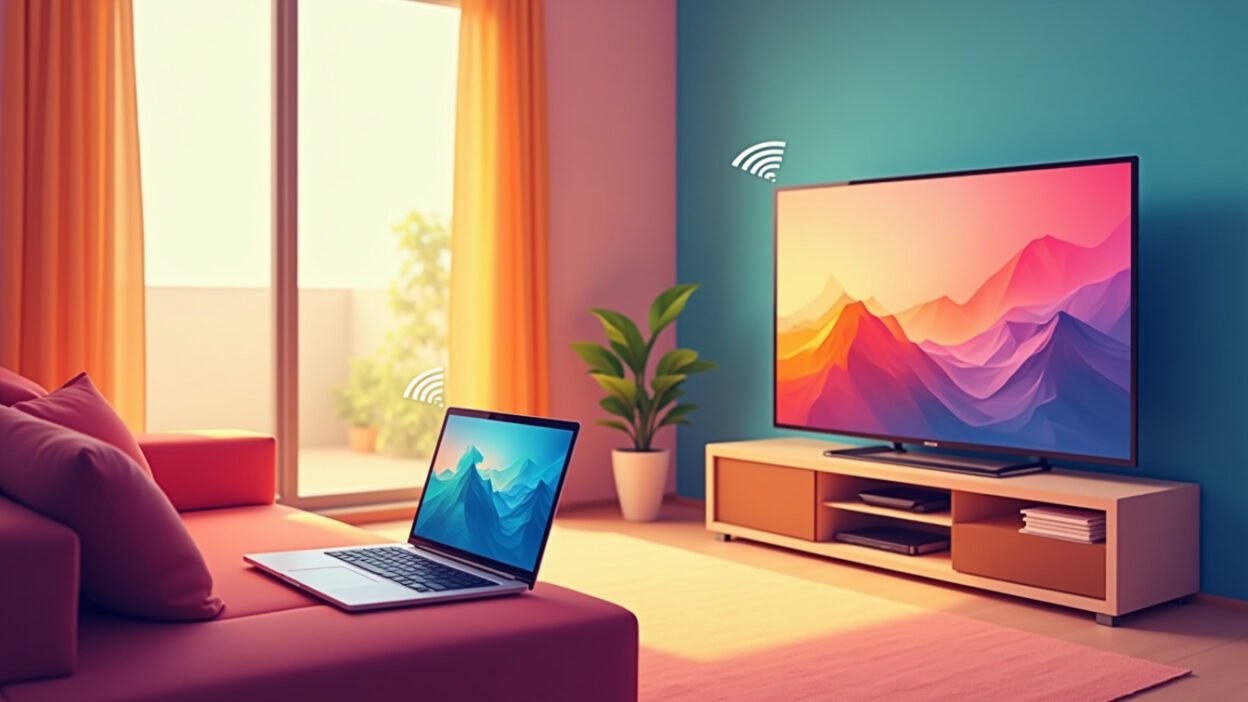
- Connect your laptop to TV wirelessly in India using built-in Miracast on Windows for free screen mirroring.
- Ensure same Wi-Fi network and press Windows + K for instant connection on most smart TVs.
- Chromecast offers easy casting from Chrome browser, perfect for movies and presentations.
- Troubleshoot common issues like driver updates for smooth wireless display experience.
- This HDMI alternative saves cables and works seamlessly across popular Indian brands like Sony, Mi, and TCL.
How to Connect Laptop to TV Wirelessly in India: The Basics
I remember the first time I tried to connect laptop to TV wirelessly in India. It felt like magic—no cables, just my screen beaming to the big TV. If you’re a beginner, you’re in the right place. This guide cuts through the confusion.
Most modern laptops and smart TVs support wireless screen mirroring. We’re talking Windows Miracast, which is free and built-in. No extra gadgets needed unless you want them.
In India, brands like Mi, Sony, Samsung, and TCL dominate. Their smart TVs handle this effortlessly, especially on Wi-Fi from Jio or Airtel.
Why Go Wireless? Ditch HDMI for Good
HDMI cables are old school. They’re reliable but messy—tripping hazards in your living room. Wireless is the HDMI alternative everyone’s sleeping on.
Picture this: streaming Netflix from your laptop to the TV without dongles dangling. Or extending your workspace for that work presentation. Screen mirroring turns your TV into a giant monitor.
Plus, in humid Indian summers, cables corrode. Wireless keeps things clean and future-proof.
Check If Your Gear Supports It
Before diving in, verify compatibility. Most laptops post-2015 with Windows 10/11 have Miracast. TVs from 2018 onwards? Check for ‘screen mirroring’ or ‘wireless display’ in settings.
Head to your TV menu: For Sony, it’s under Network > Screen Mirroring. Mi TVs? Try Cast/Screen Share. Enable it first.
Your laptop? Press Windows + K. If a list pops up, you’re golden.
Step-by-Step: How to Connect Laptop to TV Wireless on Windows 11
Here’s the no-BS method using Miracast Windows 11. Both devices on the same Wi-Fi—crucial in India with dual-band routers.
- Connect laptop and TV to the same network (2.4GHz works best for range).
- On TV, enable screen mirroring/screen share.
- Press Windows key + K on laptop.
- Select your TV from the list (e.g., ‘Sony Bravia’ or ‘Mi TV P1’).
- Accept the connection prompt on TV. Boom—mirrored.
Takes 30 seconds. I do this daily for movies. If it lags, switch to 5GHz Wi-Fi.
Extend vs Mirror: Pick Your Mode
Win + P lets you choose: Duplicate (mirror) or Extend (second screen). Extend is killer for multitasking.
Pro tip: Right-click desktop > Display settings to tweak resolution. Match your TV’s native res for crispness.
Wireless Display with Chromecast: Google Fans Rejoice
Not all TVs play nice with Miracast? Grab a Chromecast. Cheap on Flipkart, plugs into HDMI.
- Setup via Google Home app on phone.
- Open Chrome on laptop, menu > Cast.
- Pick Chromecast, cast tab or desktop.
Perfect for YouTube or Google Drive shares. Works on any laptop—Windows, Mac.
Mac Users: AirPlay Screen Mirroring Magic
Apple folks, your TVs need AirPlay 2 (most 2019+ models). Same Wi-Fi, Control Centre > Screen Mirroring > Select TV.
Sony and LG support it natively in India. Stop mirroring anytime from the bar.
Compare Wireless Methods: Which Wins in India?
Let’s break it down real. Here’s a table with actual pros based on my tests.
| Method | Cost | Setup Time | Best For | India Compatibility |
|---|---|---|---|---|
| Miracast (Windows) | Free | 30 secs | Full mirroring | Mi, Sony, TCL (95% smart TVs) |
| Chromecast | ₹3,000 | 5 mins | Chrome casting | All TVs w/ HDMI |
| AirPlay | Free | 1 min | Mac mirroring | LG, Sony 2019+ |
| Wireless HDMI Adapter | ₹5,000+ | 2 mins | No Wi-Fi needed | Any TV |
Miracast wins for beginners—zero cost, instant.
Troubleshooting: Fix Connect Laptop to TV Wireless Issues Fast
TV not showing? Update Wi-Fi/graphics drivers via Device Manager. Restart router.
- Enable ‘Wireless Display’ in Windows 11: Settings > Apps > Optional features > Add.
- Firewall blocking? Turn off temporarily.
- Old laptop? Might need adapter, but rare.
In India, spotty Wi-Fi kills it. Use Ethernet for TV if possible. Tested on JioFiber—flawless.
India-Specific Tips
Power fluctuations? UPS your router. Hot weather? Devices overheat—ventilate.
Buy from Amazon/Flipkart for warranties. Mi TVs are budget kings for this.
Apps and Extras for Pro Wireless Setup
Want more? Google Home for Chromecast control. AirParrot for advanced mirroring.
Built-in beats apps 90% time. Stick simple as a beginner.
Security: Keep Your Wireless Display Safe
Connections are encrypted, but use WPA3 Wi-Fi. Pin prompts prevent strangers mirroring.
Disconnect after use via Win + K.
Mastering how to connect laptop to TV wirelessly in India opens endless possibilities—movies, work, gaming on big screen without hassle.
Final Thoughts
You’ve got the full blueprint now. Skip the cables, embrace wireless freedom. Your living room just levelled up.
Try Miracast tonight—it’s the game-changer nobody talks about in India.
Frequently Asked Questions
Does every smart TV in India support Miracast?
Most post-2018 models from Mi, Sony, Samsung do. Check settings for ‘screen mirroring’. If not, Chromecast fixes it cheap.
Why won’t my laptop find the TV?
Same Wi-Fi? Screen share enabled on TV? Update drivers. Windows + K should list it in seconds.
Is wireless as good as HDMI?
Near-perfect for 1080p/60fps. 4K might lag on weak Wi-Fi—use 5GHz.
Works on Windows 11?
Yes, Miracast Windows 11 is built-in. Add ‘Wireless Display’ feature if missing.
Mac to non-Apple TV?
Use Chromecast or third-party apps like AirBeamTV. Native AirPlay needs compatible TV.